5 Hidden iPhone Features You Should Know in 2026
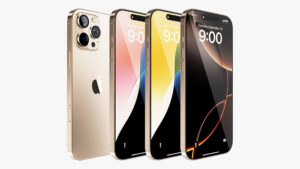
Apple continuously updates iOS, and with each iteration, it introduces hidden features that can significantly enhance productivity, convenience, and overall user experience. While many users are familiar with basic functions like messaging, browsing, and FaceTime, several lesser-known features remain underutilized. This professional guide explores five hidden iPhone features in 2026 that can make your device smarter, faster, and more intuitive.
1. Back Tap: Transform Your iPhone into a Shortcut Machine
Introduced in iOS 14 and enhanced in iOS 17/18, Back Tap allows users to trigger actions by tapping the back of their iPhone. This feature is often overlooked but can dramatically improve efficiency.
How to Activate Back Tap:
- Go to Settings > Accessibility > Touch > Back Tap.
- Choose Double Tap or Triple Tap.
- Assign actions such as taking a screenshot, opening the control center, activating Siri, or running a Shortcut.
Practical Uses:
- Quick Screenshot: Instead of pressing the side button and volume up simultaneously, double-tap the back.
- Open Apps: Launch frequently used apps like Notes or Calendar instantly.
- Accessibility Shortcuts: Toggle magnifier, voice control, or other accessibility features without navigating through menus.
Professional Tip: Combine Back Tap with the Shortcuts app to execute complex multi-step actions with a single tap.
2. Live Text and Visual Look Up: AI-Powered Intelligence
With AI integration, iPhones can now interact with text and objects in images through Live Text and Visual Look Up.
Live Text:
- Recognizes text in photos, screenshots, and the camera view.
- Allows you to copy, paste, look up, translate, or share text directly.
- Example: Snap a photo of a business card and tap to save the number or email to contacts.
Visual Look Up:
- Identifies objects, landmarks, plants, animals, and art in your images.
- Provides quick information and web results without leaving the Photos app.
- Example: Take a picture of a plant and learn its species instantly.
Professional Tip: Combine Live Text with productivity apps like Notes, Reminders, or Mail to streamline workflow and reduce manual data entry.
3. Focus Modes and Automation: Personalized Digital Boundaries
iOS 16/17 introduced Focus Modes, which go beyond Do Not Disturb by creating personalized notification and app restrictions based on context.
Setting Up Focus Modes:
- Navigate to Settings > Focus.
- Choose default modes like Work, Personal, Sleep, or create custom modes.
- Configure which apps, contacts, and notifications are allowed.
Advanced Automation:
- Link Focus modes to Time, Location, or App Usage.
- Example: Activate Work Focus automatically when you arrive at the office and only allow notifications from your boss and essential work apps.
- Example: Enable Sleep Focus to dim the screen, mute notifications, and play soothing sounds at night.
Professional Tip: Focus Modes can be synchronized across iPhone, iPad, and Mac, ensuring a seamless experience across Apple devices.
4. Hidden Trackpad in the Keyboard: Precision Editing Made Easy
Editing text on iPhones used to be frustrating, but iOS introduced a hidden trackpad feature within the keyboard for precise cursor control.
How to Access:
- Tap and hold the spacebar on the default iOS keyboard.
- The keyboard transforms into a trackpad, allowing you to move the cursor freely.
- Use two fingers to select text or swipe gestures to highlight multiple lines.
Advanced Usage:
- Fine Editing: Quickly adjust punctuation, formatting, or correct typos without tapping repeatedly.
- Text Selection: Easily select paragraphs for copying, cutting, or formatting.
- Integration with Third-Party Apps: Works in Notes, Mail, Messages, and almost all text fields.
Professional Tip: Combine the trackpad with external keyboards or Apple Pencil (on iPads) for seamless document editing on the go.
5. Hidden Backdoor for Storage Optimization and App Efficiency
iOS contains hidden tools to optimize storage and app performance that many users overlook.
Optimized Storage Features:
- Automatically offload unused apps while keeping user data intact (Settings > General > iPhone Storage > Offload Unused Apps).
- Enable iCloud Photos Optimization to store full-resolution photos in the cloud while keeping lighter versions on-device.
App Efficiency:
- Review storage per app and clear cache-heavy apps manually (Settings > General > iPhone Storage).
- Background App Refresh can be selectively disabled for apps that consume unnecessary bandwidth (Settings > General > Background App Refresh).
- Battery usage insights help identify power-hungry apps and optimize accordingly.
Professional Tip: Regularly reviewing iPhone storage and background activity improves speed, battery life, and overall device longevity.
Bonus Feature: Hidden Safari Tricks
Although not an iPhone-exclusive feature, Safari contains hidden productivity tools:
- Pin Tabs: Keep frequently used websites accessible at all times.
- Reader Mode: Strip web pages to focus on content, ideal for reading articles distraction-free.
- Private Browsing Enhancements: Track prevention and auto-delete cookies after sessions for better privacy.
- Tab Groups: Organize multiple tabs based on projects, research, or hobbies.
Professional Tip: Combine Safari tab groups with iCloud to sync across all Apple devices seamlessly.
Conclusion
These five hidden iPhone features — Back Tap, Live Text & Visual Look Up, Focus Modes & Automation, Hidden Trackpad, and Storage Optimization — dramatically enhance iPhone functionality when fully utilized. Users who explore these hidden tools can boost productivity, simplify daily tasks, and improve device efficiency.
Vision: In 2026, iPhones are designed to be intelligent assistants, capable of anticipating user needs and automating tasks. Discovering and using hidden features allows users to harness the full potential of their device.
Opinion: While iPhones are known for their ease of use, power users can gain significant advantages by exploring these underutilized features. Mastering these hidden tools can transform how you interact with technology daily.
Value Proposition: This guide provides actionable, professional insights into lesser-known iPhone capabilities, empowering users to optimize their devices for productivity, convenience, and enhanced user experience in 2026.
